A. Updating the Give A Little App
If neither of these work, your menu has likely been locked, see video below to unlock this.
B. Bluetooth Reset on your SumUp Reader
1. Disconnect Power
To reset the bluetooth in your SumUp reader, you need to stop power coming into the unit.
Check your power source:
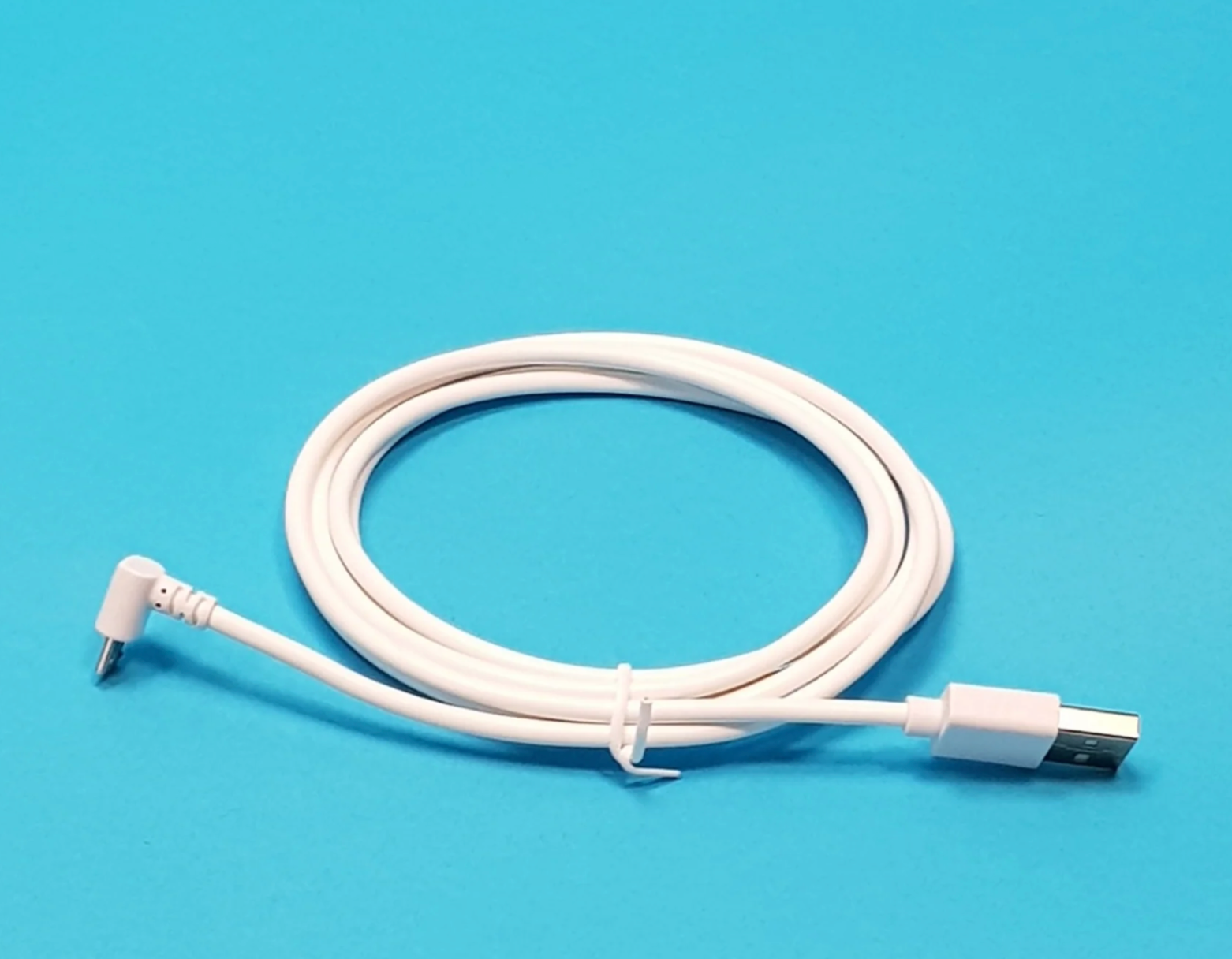
a) 3m Static Cable (as photos below) - Simply unplug the USB cable from the charger plug
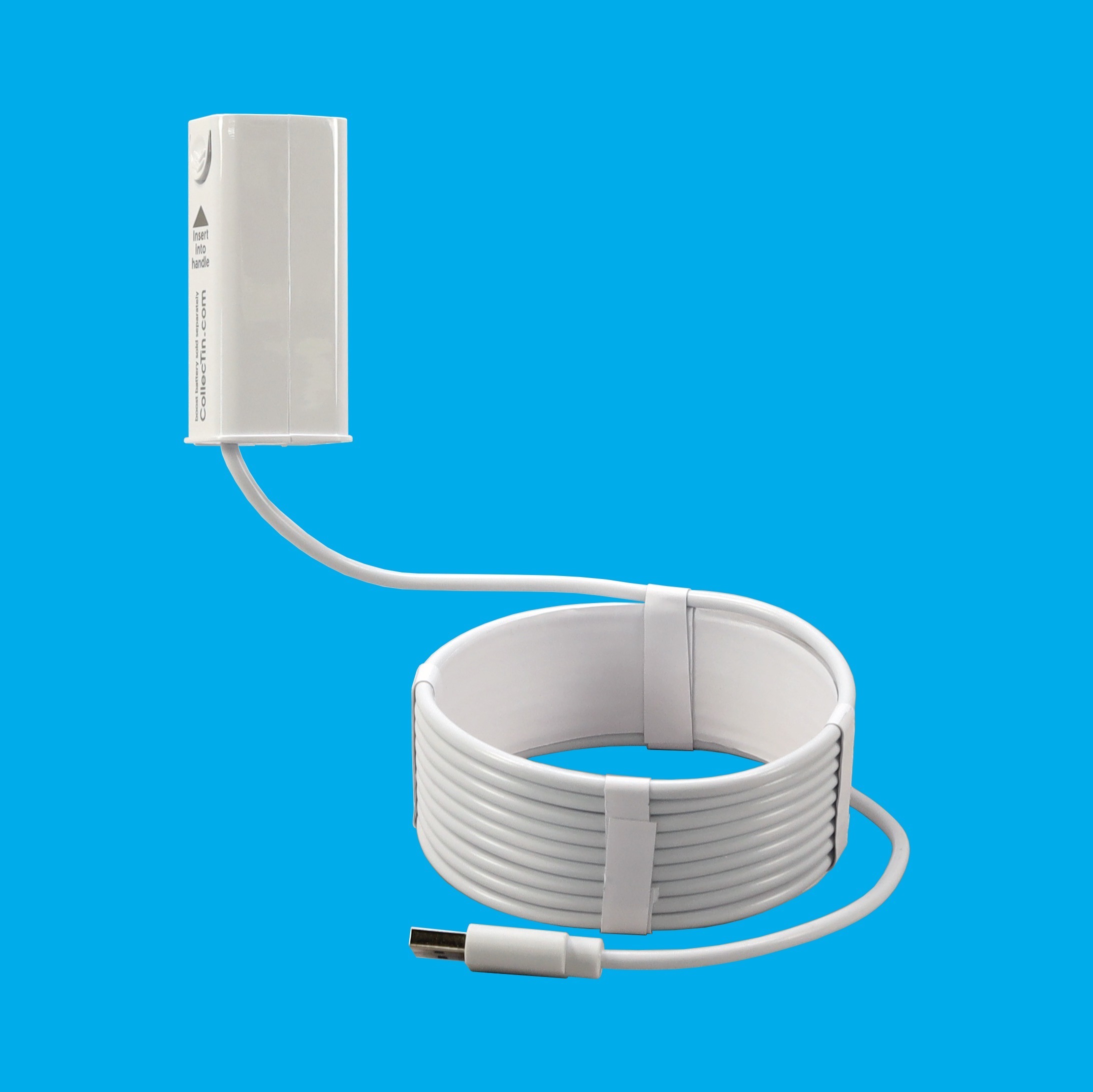 | 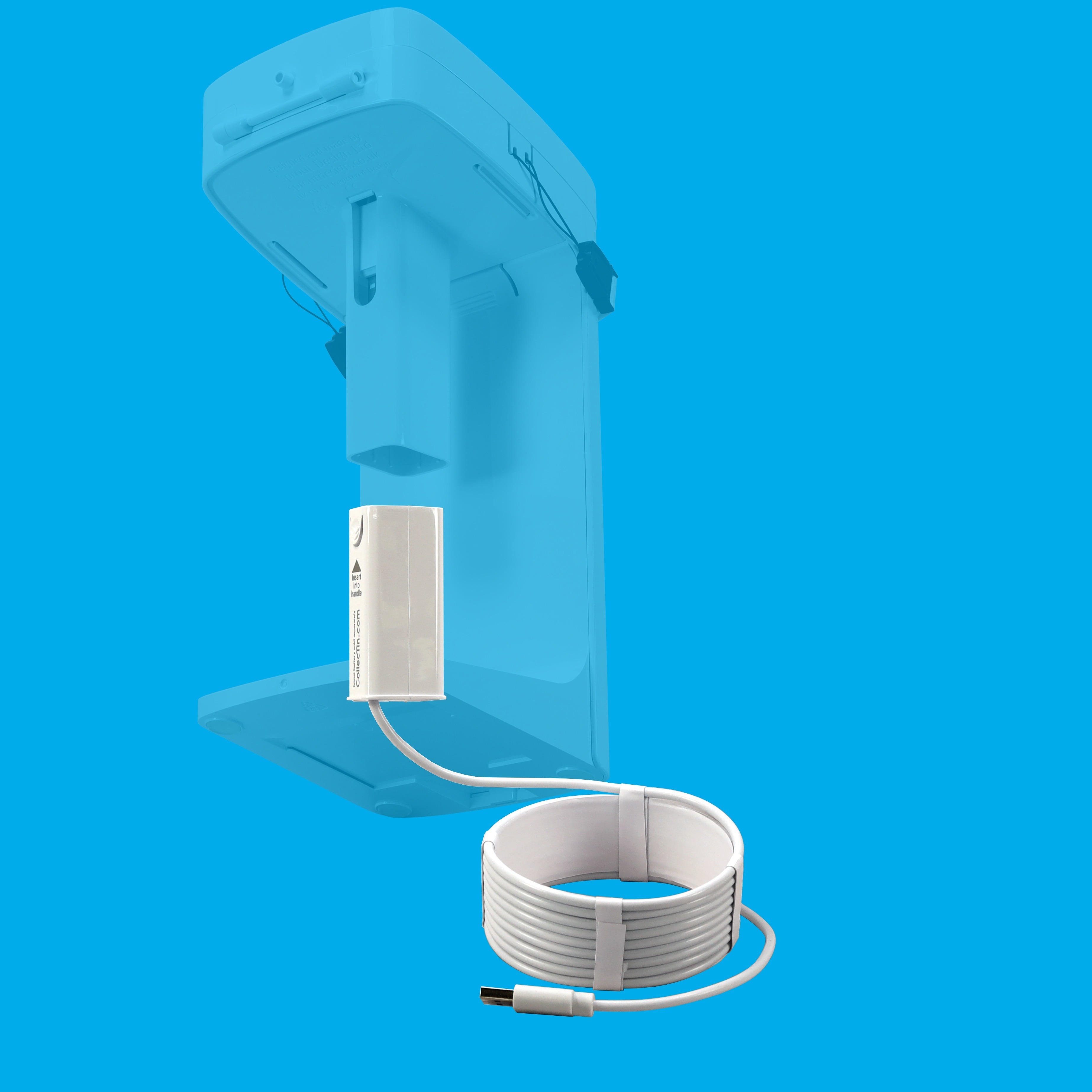 |
b) Booster battery (as photos below) - Remove the battery from the handle! (Use your thumbnail in the slot along the back of the handle, to push down on the top of it - it will then slide down and out).
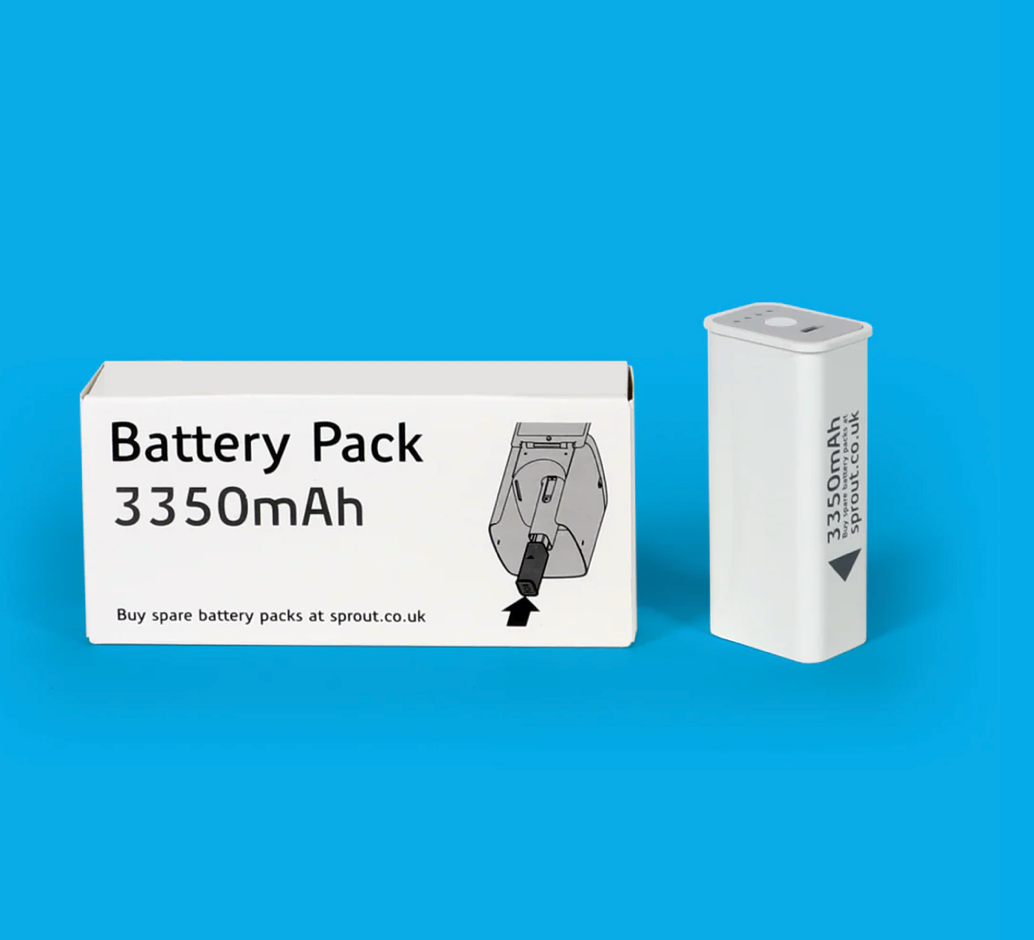
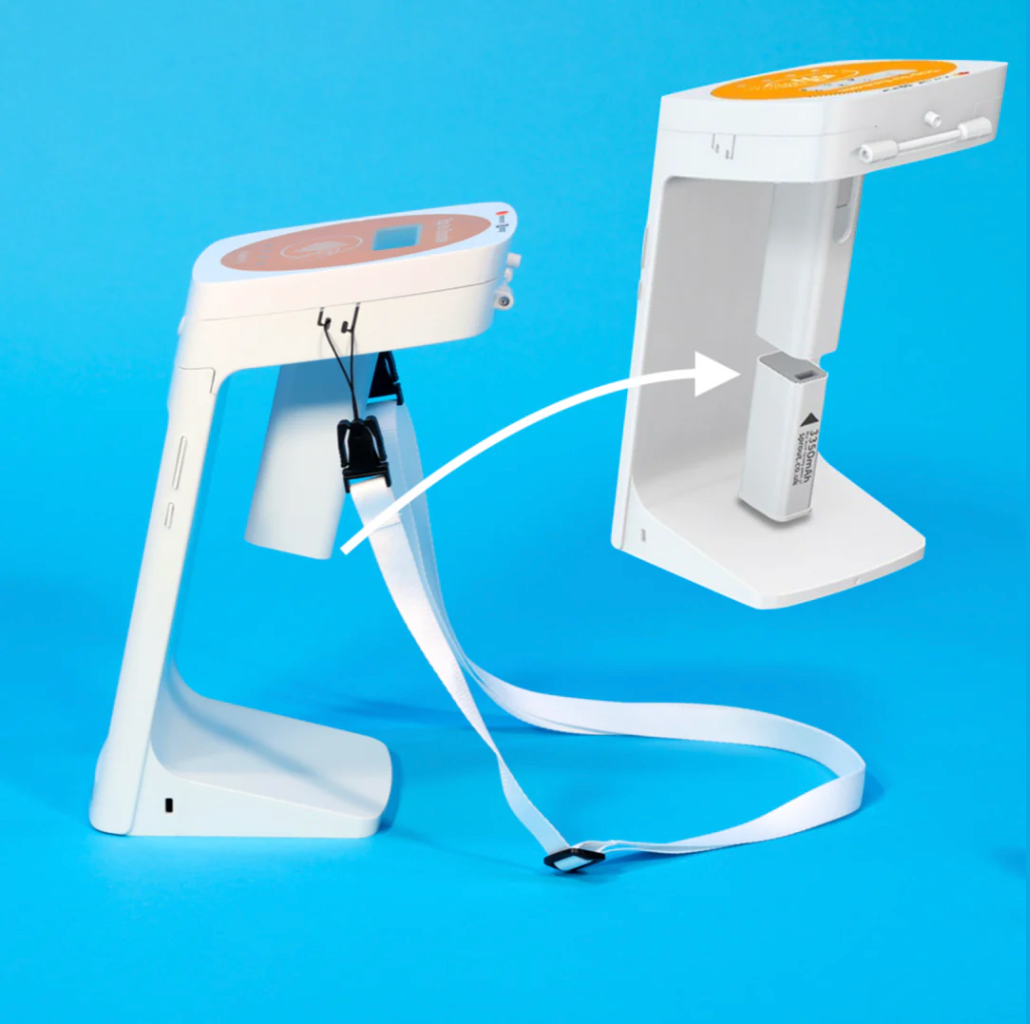
2. Identify your SumUp reader
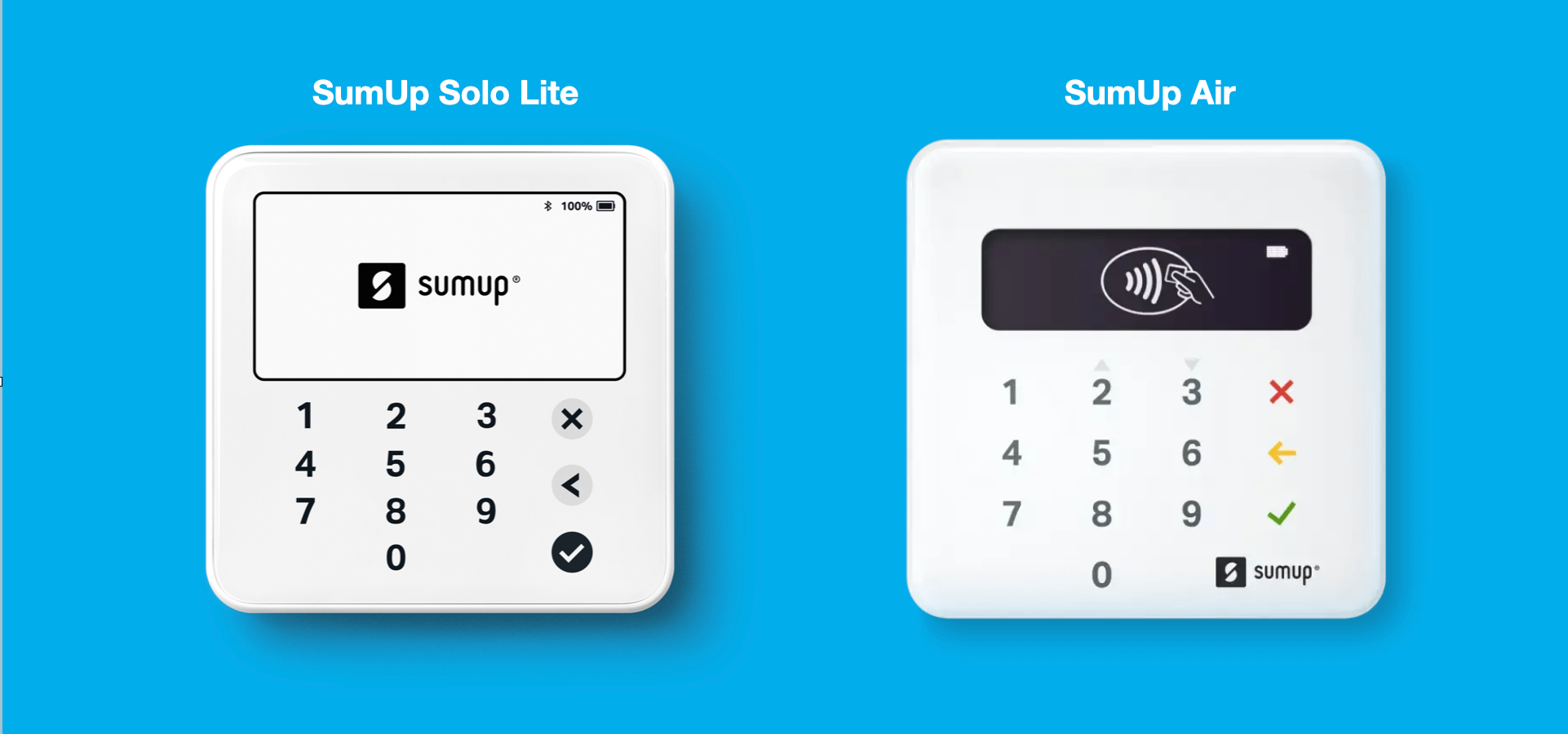
2.1 SumUp Solo Lite
To reset the Solo Lite
- Disconnect your CollecTin More from power (unplug the static cable or remove the booster battery)
- Press the power button on the right side of the card reader and hold it is for 8 seconds.
- This should reboot the Solo Lite and reset the bluetooth.
On the large CollecTin More screen, if you have your Fully Single App Kiosk / Auto Lock (A15) active, please stop/disable this first.
On your Home Screen, swipe down from the top of your tablet, tap "Bluetooth" or the Bluetooth symbol to turn it off, wait 10 seconds and turn it back on again.
Go back into Give A Little, pull the menu out from the left > Connect Reader and follow the steps. If the reader still will not connect follow the easy steps in the tablet settings as indicated in the video below
>> Video: SumUp Solo Lite - "Forgetting" card reader on tablet settings to reconnect
>> Video: SumUp Solo Lite - How to run a Firmware Update
Once you are connected again remember to activate the Fully Single App Kiosk again.
2.2 SumUp Air
>> Video: How to reset the bluetooth on your SumUp Air reader
Was this article helpful?
That’s Great!
Thank you for your feedback
Sorry! We couldn't be helpful
Thank you for your feedback
Feedback sent
We appreciate your effort and will try to fix the article