IMPORTANT: Before inserting your SumUp Solo Lite reader into your CollecTin More, please use the charger cable supplied in the SumUp box and charge to reader to 100%.
Step 1: Give A Little App Log out & Tablet Shut Down
Please swipe into the Give A Little menu from the left and "log out" of your account.
Next, press the power button on the side of your CollecTin More for a few seconds and power down your unit. If your CollecTin More does not want to power down, you may have the Fully Single App Kiosk active. Please Stop Kiosk mode, then shut down.
If you need a reminder how to stop kiosk mode, find instructions here:
Step 2: Disconnect Power
Before you start the conversion, always remove power coming into the unit. Depending on which power source you use do the following:
a) Booster battery (as photos below) - Remove the battery from the handle!
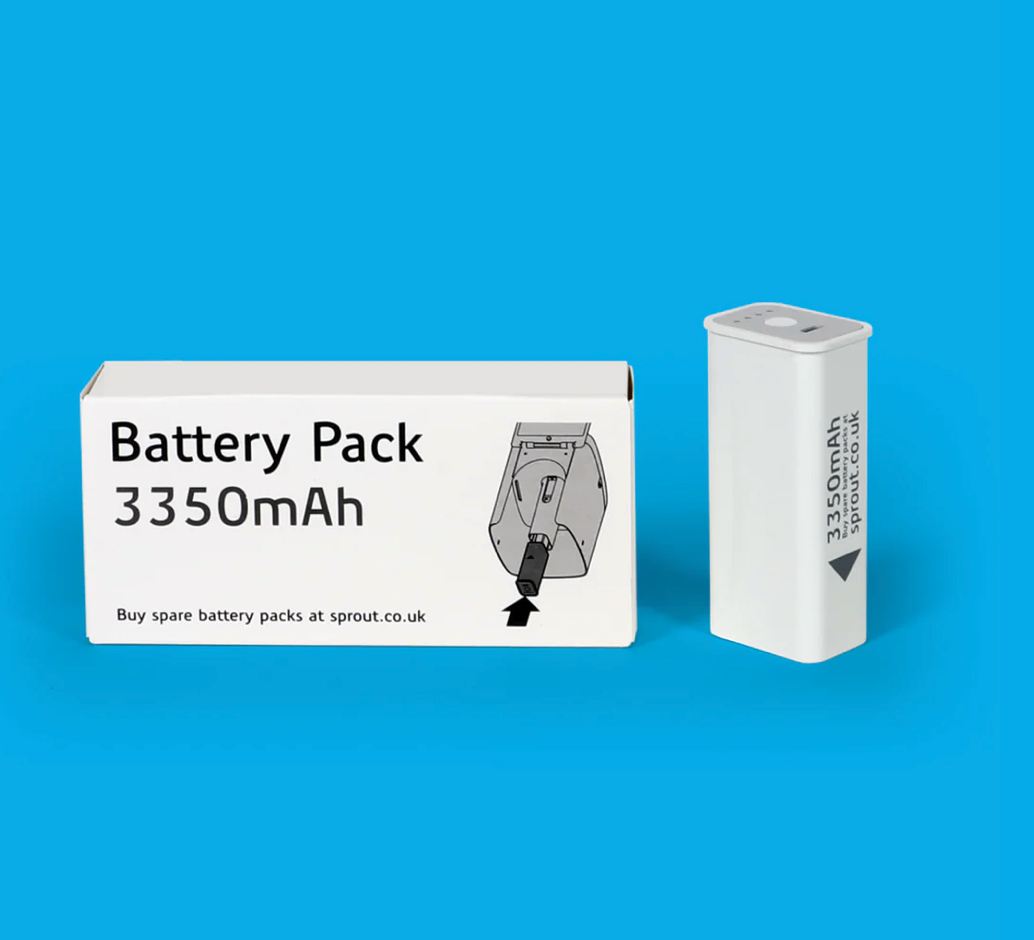
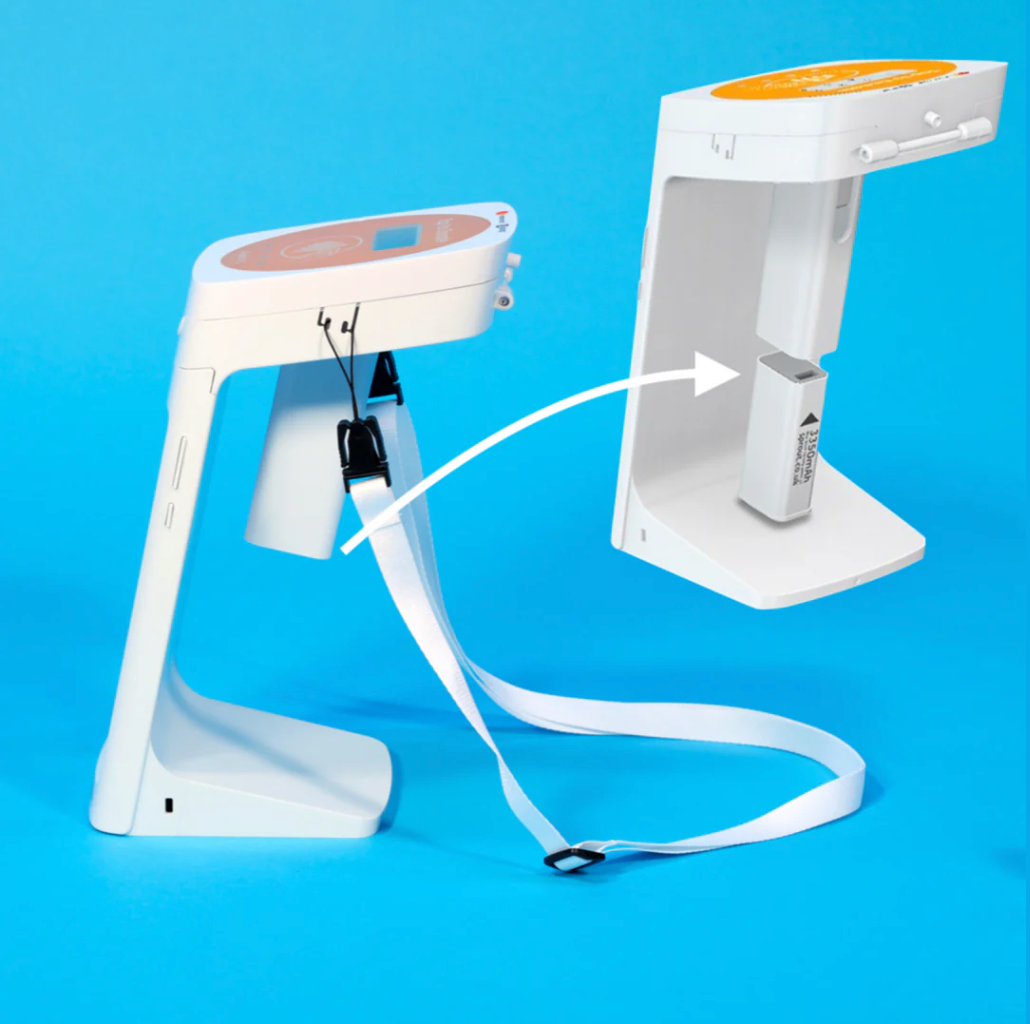

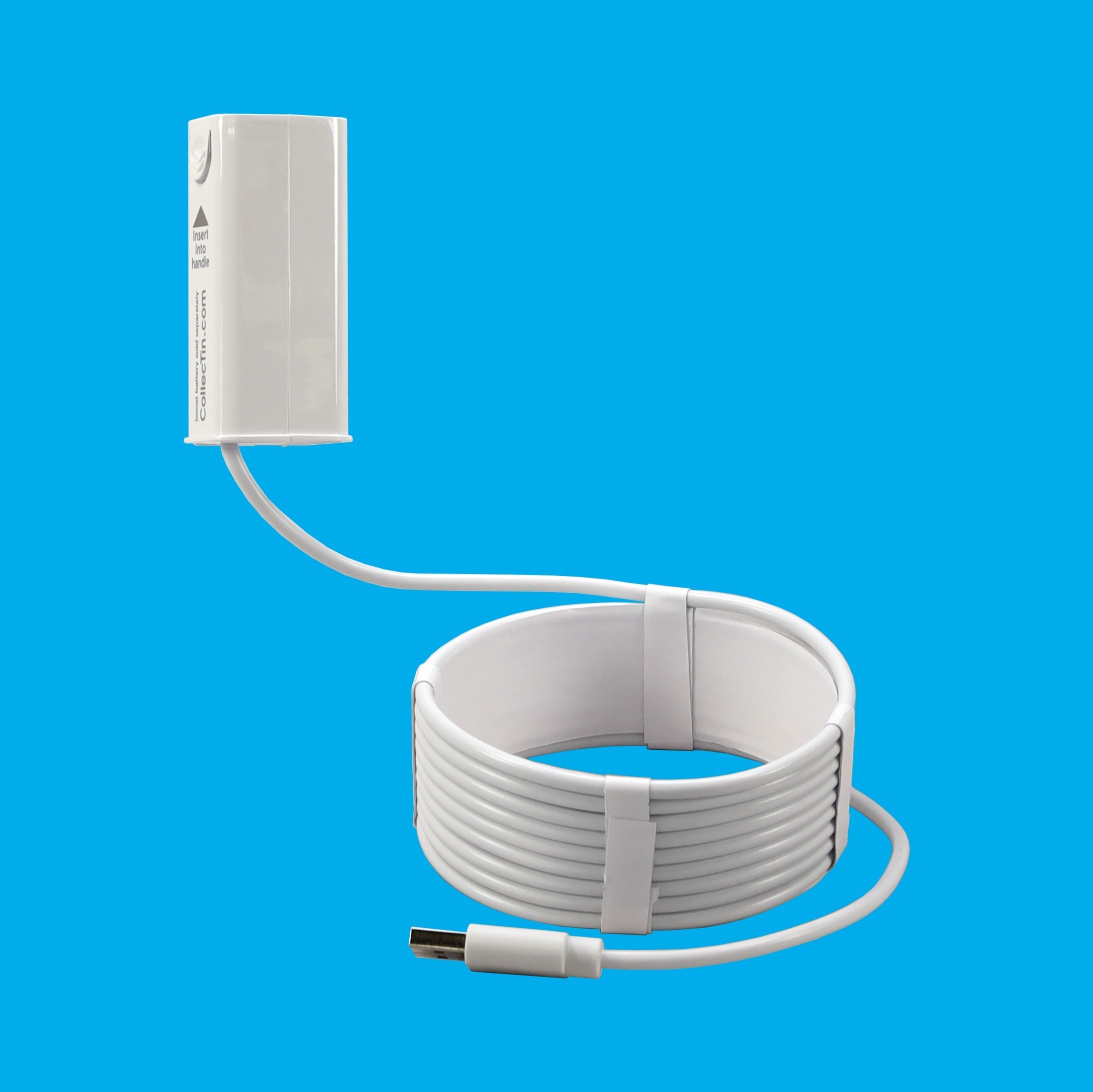
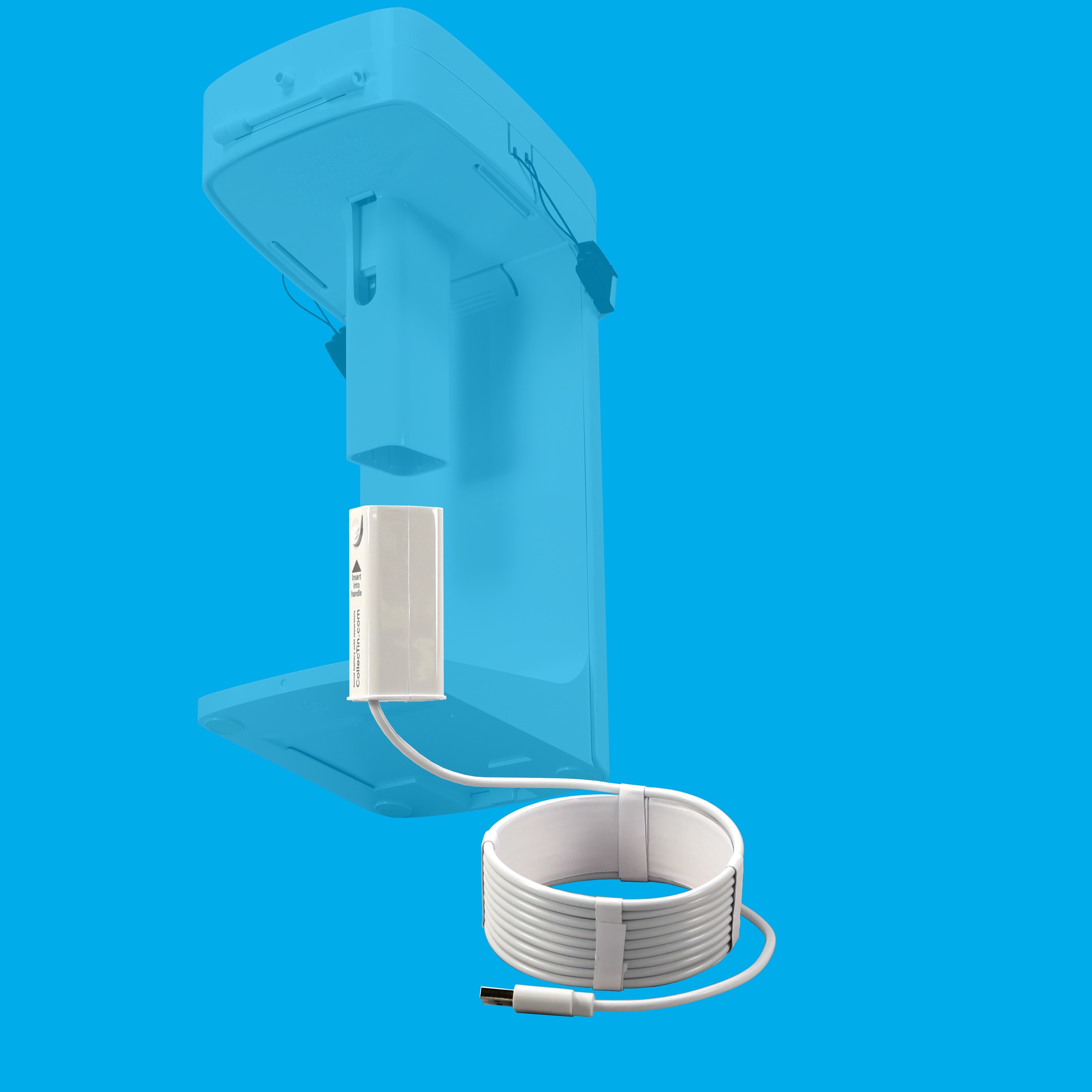
b) 3m Static Cable (as photos below) - Unplug the plug from power socket / USB cable from the charger plug
 |  |
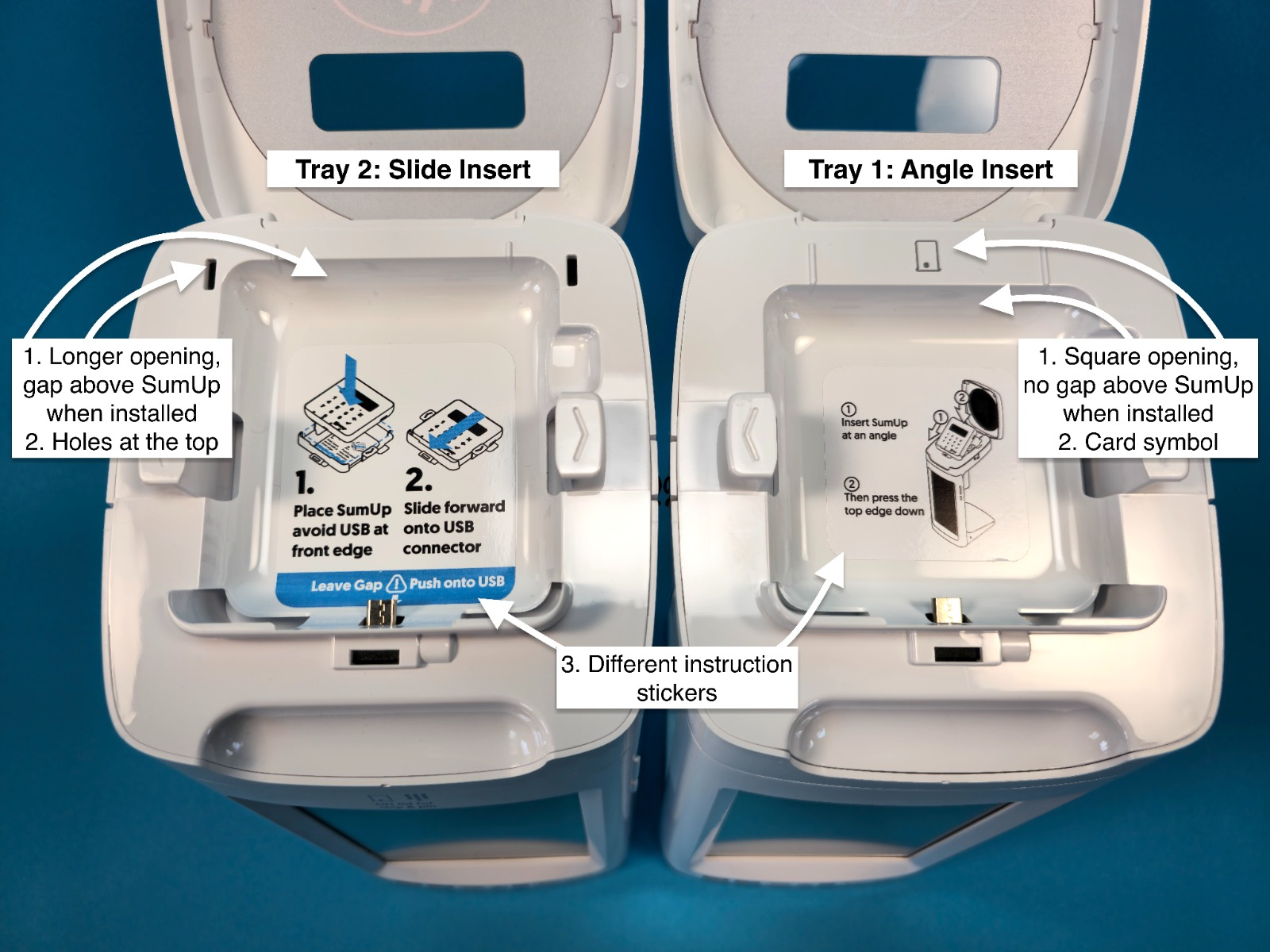
Chose your relevant video:
Note: The video shows the conversion from SumUp to Stripe, however follow the same steps that show how to fit the new tray you were provided with.
Step 5: Connecting your SumUp Solo Lite to Give A Little BEFORE securing it in your CollecTin More
IMPORTANT: Before securing your SumUp Solo Lite into the CollecTin More, please follow the below instructions and note down the serial number of your SumUp Solo Lite card reader. Once secured, it is difficult to remove the reader to gain access to the serial number again, and you need this to connect the reader to Give A Little.
Log in to the Give a Little app
Make a test donation and secure the reader
- Choose an amount you wish to donate
- The CollecTin will attempt to pair with the SumUp card reader
- [IF more than one reader is found]:
- Check the back of your SumUp reader (or its box) for a 17 digit S/N code, and write the last three digits down in a secure place
- Scroll through by swiping left and right until the reader serial number in the middle of the screen matches that of the correct unit
- [IF Give A Little is still connecting to the previous reader]:
- press 'Switch to another card reader'
- Scroll through by swiping left and right until the reader serial number in the middle of the screen matches that of the correct unit
- Tap ‘Connect’
- Lift the lid and tap the black checkmark icon on the reader to confirm pairing
- On the tablet screen, check the “Allow access to contacts and call history” checkbox and tap on “PAIR”
- [IF the firmware update pop-up appears] Tap ‘OK’ and wait for the update to install
- Tap ‘Done’ on the ‘Connected!’ Screen
- The transaction should go through afterwards
- [IF you are taken back to the campaign page instead] Pick the desired transaction again and follow the instructions on screen
- You can either tap a card on the top of the reader to complete the transaction or cancel the transaction by lifting the lid and tapping the grey X button on the card reader
- A successful donation will take you to the thank you screen, then back to the donation amounts
- Make sure transactions go through and the reader charges properly before the next steps!
Step 6: Install and secure your SumUp Solo Lite in your CollecTin More
- Install the reader:
- With the card reader in its place at the top of the CollecTin More AND plugged in, align the cage clips with the slots on the tray (the wide bezel should be at the bottom)
- Using a hand on each side, firmly push the cage down to click all 6 clips at once
- The cage should be snug into place when fitted
You are now ready to start taking donations!
Was this article helpful?
That’s Great!
Thank you for your feedback
Sorry! We couldn't be helpful
Thank you for your feedback
Feedback sent
We appreciate your effort and will try to fix the article